Type Fast On A Keyboard

Do you want to learn how to type fast in the most efficient way? Follow these instructions, and you will be on your way to type fast on a keyboard.

1.Changing your keyboard

If you are going for speed, choosing the standard keyboard layout is out of the question. You must remember where are the buttons on keyboard. If you are a beginner at typing try to write your name or something you are familiar with your school name or your address etc. To learn more about the layouts. Notice that you don’t have to buy a new keyboard, just change a setting on your computer.

2.Improving your speed

Before you type, warm up your fingers by making fists with both your hands. Open them slowly, and bend your fingers back until they can’t physically go further without external help. Repeat this five times and you’ll be typing faster than you did before. Try not to look at the keyboard when typing. Challenge yourself at all times until you can type without looking at all, and get the typing accurate.

3.Use websites that allow you to practice touch typing

Practice at the various levels until you are using the fastest typing levels. Use timed typing tests that require you to beat the clock to finish a paragraph.

4.Find a touch typing tutor and learn to type

There are tons of free alternatives that should fit most people fine. Don’t move the keys around. This will only slow down your learning. To speed up your learning, try to practice with text that makes sense, and not the usual repetitive sequences of characters – these do not really work.

5.When you are ready to take a shot at beating the world record, and choose a test, preferably with a three minute duration to get a more accurate result.

To motivate yourself, make notes of your results before, during and after your training to see the increase in speed. Choose different tests, so that you don’t end up memorizing a text.


Clean A Mousepad

Mousepads are a great way to help your mouse move more smoothly. Some of them even come with extra cushioning for support. Sometimes, they get dirty and need to be cleaned. To quickly clean a fabric or plastic-covered mousepad, rub it with a moist rag and some shampoo. Use a clean rag and water to rinse off the shampoo, then let your mousepad dry completely.

How to clean a mousepad?

Check out what your mousepad is made of. Usually it will be a spongy foam, covered with either a finely knit fabric or a plastic top. Clean it according to the type of surface. If the surface is fabric, try rubbing gently with a moist washcloth or rag and a bit of shampoo. Shampoo is a mild cleaner that’s gentle on most fabrics and on skin, plus you already have it. If your mousepad is plastic-covered, use any mild spray household cleaner and a cloth or sponge. Dish soap or shampoo will work just as well.

Rinse all the cleaner off the mousepad. Pat the outside of the mousepad dry. Allow the mousepad to dry thoroughly. Let it dry all the way through the foam before returning it to your desk.

Community Q&A

1.What should I do if the fabric mouse pad I cleaned now has a bump?

Try cleaning it again with hot water and soap, and then hang it to dry. That should stop bumps from forming as well as get rid of any existing bumps.

2.What if the mouse pad has a drawing on it? Should I worry about it at all?

It shouldn’t be a problem on plastic mousepads, because the plastic is covering the drawing. However, if it is a spongy foam fabric, you may want to be gentler when cleaning.


Guide to Laptop Storage Drives

How to Choose a Laptop Based on HDD, SSD, CD, DVD and Blu-ray Options

Most modern laptops are moving away from the traditional mechanical drives in favor of more durable and smaller solid state options.

This change is being fueled by the fact that laptops keep getting smaller, and so their internal space is restricted and no longer accommodating for larger storage devices.

To help clear up confusion for buyers, this guide looks at all the various types of drives that may be in a laptop, and what they can offer.

Hard Drives

Hard drives (HDDs) are still the most common form of storage in a laptop and are pretty straight forward.

Generally, the drive will be referred to by its capacity and rotational speed. Larger capacity drives tend to perform better than smaller ones and faster spinning drives, when compared with ones of similar capacity, are usually more responsive than slower ones.

However, slower spinning HDDs do have a slight advantage when it comes to laptop running times because they draw less power.

Laptop drives are typically 2.5 inches in size and can range from 160 GB up to over 2 TB in capacity. Most systems will have between 500 GB and 1 TB of storage, which is more than enough for the standard laptop system.

If you’re looking at a laptop to replace your desktop as your primary system that will hold all your documents, videos, programs, etc., consider getting one with a hard drive that’s 750 GB or larger.

Solid State Drives

Solid state drives (SSDs) are starting to replace hard drives in more laptops, especially the new ultrathin laptops.

These types of hard drives use a set of flash memory chips rather than a magnetic platter to store the data. They provide faster data access, lower power consumption, and higher reliability.

The downside is that SSDs don’t come in such large capacities as traditional hard drives. Plus, they usually cost a lot more.

A typical laptop equipped with a solid state drive will have anywhere from 16 GB to 512 GB of storage space, although there are some available with more than 500 GB but they are prohibitively expensive. If this is the only storage in the laptop, it should have at least 120 GB of space but ideally around 240 GB or more.

The type of interface that the solid state drive uses can also have a significant impact on the performance but many companies do not overtly advertise it. Most inexpensive systems like Chromebooks tend to use eMMC which isn’t much more than a flash memory card, while high performance laptops use the new M.2 cards with PCI Express (PCIe).

Solid State Hybrid Drives

If you want higher performance than a traditional hard drive but don’t want to sacrifice storage capacity, a solid state hybrid drive (SSHD) is another option. Some companies are referring to these as just hybrid hard drives.

Solid state hybrid drives include a small amount of solid state memory on a traditional hard drive that is used to cache frequently used files.

They do help speed up tasks such as booting up a laptop but they aren’t always faster. In fact, this form of drive is best used when a limited number of applications are used on a frequent basis.

Smart Response Technology and SSD Cache

Similar to hybrid hard drives, some laptops are using both traditional hard drives with a small solid state drive. The most common form of this uses the Intel Smart Response Technology. This provides the benefits of the storage capacities of the hard drive while gaining the speed benefits of a solid state drive.

Unlike SSHDs, these caching mechanisms usually use larger drives between 16 and 64 GB that provide a boost to a larger range of frequently used applications, thanks to the extra space.

Some older ultrabooks use a form of SSD caching that offers higher storage capacities or lower costs, but Intel has changed this so that a dedicated solid state drive is required in order for new machines to meet the ultrabook branding requirements.

This is becoming much less common now that prices for SSD’s continue to drop.

CD, DVD and Blu-ray Drives

It used to be that you were required to have an optical drive on a laptop since most software was distributed on discs, so it was required in order to load the program to your computer. However, with the rise of digital distribution and alternate methods of booting, optical drives are not a requirement like they once were.

These days, they’re used more for watching movies or playing games, as well as burning programs to a disc, creating DVDs, or building audio CDs.

If you do need an optical drive, what type of drive should you get on a laptop? Well, whatever you end up getting, it should definitely be compatible with DVDs. One of the great advantages to laptops is their ability to be used as portable DVD players. Anyone who travels regularly has seen at least one person pull out a laptop and start watching a movie during the flight.

DVD writers are pretty much standard for laptops that have an optical drive. They can fully read and write both CD and DVD formats. This makes them extremely useful for those looking to watch DVD movies on the go or for editing their own DVD movies.

Now that Blu-ray has become the defacto high definition standard, more laptops are beginning to ship with these drives.

Blu-ray combo drives have all the features of a traditional DVD burner with the ability to play Blu-ray movies. Blu-ray writers add the ability to burn lots of data or video to the BD-R and BD-RE media.

Here are some optical drive options and the tasks they are best suited for:

  • Basic computing w/DVD Playback: DVD-ROM
  • DVD/CD Recording: DVD Writer
  • HD Video Playback: Blu-ray Combo
  • HD Video Recording: Blu-ray Writer

With current component costs, there is almost no reason that a laptop would not have a DVD burner if it is going to have an optical drive. What is surprising is that Blu-ray drives have not become more standard as their prices are also quite low now for the combo drives. It should also be noted that laptop drives are generally much slower than similar drives found in desktop systems.

Even if a laptop does not have an internal optical drive, it’s still possible to use one so long as you have an open USB port for room to attach a USB optical drive.

Note: When you purchase a laptop with an optical drive, it may require additional software beyond the operating system to properly view DVD or Blu-ray movies.

Drive Accessibility

Drive accessibility is important when considering whether to upgrade or replace a damaged drive. It’s important to know what you’re doing, so you might consider having an authorized technician open the computer.

This generally isn’t a problem for many people, but in a corporate environment it can cause increased down time for a worker. Laptops that have drive bays that are accessible or swappable have the advantage of easy and quick access for upgrades or replacements.

In addition to being accessible, it’s also important to get an idea of what kind of drive bays there are and what the size requirements may be. For instance, the 2.5-inch drive bays used for hard drives and solid state drives can come in several sizes. The larger 9.5 mm drives often have better performance and capacities but if the drive bay only fits 7.0 mm drives due to a thin profile, you need to know that.

Similarly, some systems use the mSATA or M.2 cards rather than a traditional 2.5-inch hard drive for their solid state drive. So, if the drives can be accessed and replaced, be sure to know what type of interfaces and physical size limits there are.

Tips and Q&A to Clean A Laptop Screen

Laptop screens tend to collect dust, food particles and other debris that starts to look unattractive after a while. It’s important to use very gentle supplies to clean your laptop screen, since the LCD surface is easily damaged. Here are attached tips and Q&A for your reference.

Tips

Tissues, napkins, and other paper products will leave flakes of paper on your monitor. It’s better to not even try using them. They can contain wood fibers and may even scratch polished surfaces. You don’t want mineral spots on your screen, so don’t use tap water. If you’re a photographer, you can use your lint-free lens wipes instead of a soft cotton cloth. If you have lens cleaner for eyeglasses, check the back to see if it contains “Isopropanol”, if it does don’t use it on your LCD monitor. Use a cotton swab for the harder to reach places with the cleaning solution on it. If you apply too much of the solution and it is drippy or too damp, wipe it off with a soft cloth and apply less. Clean and then let it soak for a little and then repeat. Be patient with hard to clean spots. If in doubt, test a small area of screen first.

Community Q&A

1.How can I clean a laptop keyboard?

Try using the sticky side of a sticky note in between the keys to pick up dirt and dust.

2.Are there similar types of cloth I can use instead of microfiber?

Anything made of cotton is gentle enough to use on a laptop screen, but you should avoid using paper towels or facial tissue, which are too abrasive for this type of cleaning.

3.Where can I buy a microfiber cloth?

Most supermarkets have them, as well as office supply stores.

4.Can I use cotton for cleaning a laptop screen rather than microfiber?

Yes, as long as it is a gentle, soft kind, like t-shirt material.

5.Can Lysol wipes be used to clean a laptop screen?

No, it is too harsh. Use only water and white vinegar solution with a microfiber or soft cotton cloth, like an old t-shirt.

6.Can you use Clorox wipes or baby wipes to clean your laptop screen?

No. If you have eyeglasses cleaner, I suggest using some of that. Don’t spray it directly on the screen or it could get into your laptop.

7.How can I get better at not being distracted when I work on my homework?

Get all the distractions out of the room and take breaks every once in a while.

8.What is the best way to clean a flat screen TV with fingerprints on it?

Take some dryer sheets and wipe across the TV lightly, if there’s dust. Then take a microfiber cloth and clean it like you would a computer screen.

9.What should I do if my screen is foggy due to cleaning solution?

I used distilled vinegar and water with a microfiber cloth for mine. It worked well for me.


How to get more storage space for your tablet

Always running out of space on your tablet? Whatever tablet you use, here are some easy ways to get more storage space.

People use tablets for different things. Some browse the web, others read their email and some use it as an entertainment device.

If you listen to music, watch moves, take photographs and download apps on your tablet, there’s a high chance your tablets drive will quickly become full and you won’t be able to download anything else.

Here are some ways to get more storage space for your tablet.

Free up storage

Start by spring cleaning your tablet and removing the apps and files you don’t use. You’ll be surprised how much storage space is taken up with things you don’t even use.

Hardware

Memory card

If you own an Android tablet such as the Google Nexus 9 or the Tesco Hudl 2 then it may have a slot for a memory card. The advantage of using a card is that you can keep it in your tablet and use to store content and apps.

Invest in a card reader

A wireless portable card reader is a good solution if you don’t have a card slot on your device, but want to access extra content such as movies, photos and videos.

Storage drive

A storage drive is a good way of backing up things that you don’t use every day. Photographs, for example, take up quite a lot of storage space, but it’s likely you won’t want to look at them all that often.

Plugging in a portable drive enables you to quickly transfer photographs and free up storage space. A portable hard drive is a good place to store music and movies you don’t want to keep on your tablet.

Wireless storage

If you don’t want to mess around with cables or formatting, or if you’re an Apple iPad owner, a wireless storage drive will be more convenient.

Apple doesn’t make it easy for iPad users to add extra storage to their tablets. The device doesn’t include a USB port and uses a proprietary charging port, either 30-pin in the iPad 2 or the new Lightning connector.

Cloud storage

The advantage of using the cloud to store things is that you aren’t using storage space on your tablet. Instead your files are stored on remote servers, commonly known as the cloud.

Cloud storage has other advantages. Many devices enable you to set up an automatic backup so you don’t have to worry about remembering to copy your files manually. Additionally, in the event you lose your device, you’ll be able to restore your files from backup.

A number of cloud storage providers that offer space without charge.

BT Cloud

With BT Cloud, BT customers get 50GB or 500GB storage free depending on the broadband package.

BT Cloud can be used to store photos, music and documents.

You can access BT Cloud from any device with a browser, or via the BT Cloud app which is available for Android, Apple and Windows Phone phones and tablets, using your BT ID. From there you can share your content with family and friends.

Apple iCloud

Apple Pad and iPhone users get 5GB of iCloud storage free with their devices.

Google Android

Google offers users 15GB storage across Google Drive.

Users of Android tablets, such as the Tesco Hudl, can turn on automatic backups to back up app information, settings and wi-fi passwords by heading to Settings – Backup & reset – Back up my data.


7 tips to extend your tablet’s battery life

Whether you’ve got a Tesco Hudl or a Nexus 7, a few simple tweaks can help you eke more life out of your Android tablet’s battery.

Step 1: Check what’s sapping your tablet’s power

Android provides a quick and easy way to see what’s draining most of your tablet’s power. Go to Settings > Battery. This will show you a bar graph of the different hardware, apps and processes that are putting the most drain on your battery.

The greatest drain is almost always the screen, as powering the backlight for your tablet’s large display uses a lot of energy.

Step 2: Turn the screen brightness level down

Adjusting the brightness level of your tablet’s screen can save a lot of battery power. To do this, open Settings > Display > Brightness. A pop-up window will display a slider which you can use to change the brightness level. If the slider isn’t visible untick the box marked Automatic Brightness. Reduce the brightness to a level that’s less intense but still comfortable for you to read text on your screen without straining your eyes.

Step 3: Reduce the screen time out

Reducing the amount of time your screen stays lit after you’ve stopped interacting with your tablet is another good way of slowing battery drain. Return to the Settings > Display menu and select Sleep. Reducing this setting tells your tablet to turn off the screen after a set period of inactivity. The shorter the time you select, the less power your display will use. Try changing it to a setting of two minutes.

Step 4: Turn off unwanted connections

Wireless network technologies such as wi-fi and Bluetooth also consume quite a bit of power, so if you’re not using them it’s best to turn them off. This is especially true of Bluetooth, which many people never use on their tablet yet still leave turned on.

Go to Settings and select Bluetooth under the Wireless & Networks heading. Flick the switch to Off to disable Bluetooth.

If you’re using your tablet on a long bus or train journey – or anywhere there’s no wi-fi reception, you should also turn off wi-fi to save power. Open Settings and switch the wi-fi toggle switch to Off.

Step 5: Avoid using live wallpapers and widgets

Android’s Live Wallpapers and Widgets require processing and graphics power to run so put extra drain on your battery. It’s a relatively minor amount, but if you do want to absolutely maximise your tablet’s battery life you may want to get rid of them.

Delete widgets from your homescreen by tapping and holding on them before swiping them up to the Remove icon. To change your wallpaper, tap and hold on an empty part of your homescreen and choose Wallpaper from the pop-up menu.

Step 6: Fully discharge the battery

The lithium ion batteries used in almost all Android tablets don’t suffer the over-charging problems of older Ni-Cad batteries, so they don’t always need to be run down completely to stay at their best. However, to keep the battery’s power meter correctly calibrated it’s still a good idea to let your tablet run out of battery power after every 30 or so charges.

Step 7: Turn off Auto-sync

There are various apps and services on your tablet that automatically sync data with online servers, for storing contact information, providing Facebook alerts and sending email to your tablet. These syncing processes can drain power, especially if they’re pulling in a lot of information.

You can see which accounts are set up to auto-sync by opening Settings and choosing Accounts and Sync. If there are any you don’t want or need to sync in the background just tap on their name and untick the Sync option.


Two Ways To Clean Laptop Screen

Laptop screens tend to collect dust, food particles and other debris that starts to look unattractive after a while. It’s important to use very gentle supplies to clean your laptop screen, since the LCD surface is easily damaged. Using a microfiber cloth and a simple solution of water and vinegar will do the trick if you don’t want to purchase a special screen cleaner.

1.Cleaning the Screen With A Microfiber Cloth

First, turn the computer off and unplug the power adapter and battery. Cleaning a screen that’s in use can result in permanent damage, so err on the safe side and turn everything off. Don’t just put it to sleep. Then get a microfiber cloth. This is made with a type of fabric that doesn’t produce lint, in addition to being very soft. If you use a washcloth, T-shirt or another type of cloth, it could leave extra debris on your screen or scratch it. Avoid using paper products as well. Never use a napkin, paper towel, toilet paper or another paper product, since these are scratchy and will damage the screen. Then wipe the screen gently with the cloth. Using one sweep of the cloth should take care of any dust and loose particles on the screen. Wipe gently without exerting much pressure, since if you press too hard you could damage the screen. When you wipe with gentle circular motion, you’ll be able to lift up some of the tougher spots. Never scrub the screen, or you could cause pixel burnout. Clean the laptop frame with gentle cleaning solution. If the area around the screen is dirty, you can use a standard household cleaning solution and a paper towel; just be very careful not to let it touch the screen.

  1. Using a Cleaning Solution

First, turn the computer off and unplug the power adapter and battery. Since you’re using a liquid to clean the screen in this method, it’s important to turn off the computer and unplug it from the outlet. Create a gentle cleaning solution. The ideal solution is plain distilled water, which contains no chemicals and is gentle on the screen. Make sure you use plain white vinegar, not apple cider vinegar or any other kind. Put the solution in a small atomizer bottle. This is the type of spray bottle that you push from the top to get a fine mist, similar to a perfume bottle. Pour some of the solution into the spray bottle and screw on the top. Don’t use this to spray on the screen itself, however. Apply a minimal amount of the solution to a microfiber cloth. A static-free, fiber-free cloth works best. Remember not to use regular cloth, since this could scratch the screen. Do not soak the cloth; you just want to get it moist, which is the purpose of using the atomizer bottle to wet it. A wet cloth can drip or run when cleaning the screen and the solution can weep behind the bezel and permanently damage your screen. Try applying the solution to just one corner of the cloth at a time, to make sure you don’t get it too wet. Wipe the cloth against the screen in a circular motion. Rapid circular movements generally eliminate streaks. Apply a gentle and even pressure to the cloth. Use only enough pressure to keep the cloth in contact with the screen.


Introducing the battery you can bend

Japanese paper folding inspires development of flexible battery that could transform the wearable technology industry.

The emergence of wearable technology and devices such as smartwatches and fitness bands has brought with it a need for a new type of battery, one that is flexible – and that’s exactly what researchers in the US have developed.

A team at Arizona State University turned to origami as inspiration for the design of a new lithium-ion battery, specifically a variation called kirigami, where the paper is cut as well as being folded.

Using kirigami techniques allowed the team to develop a flexible lithium-ion battery that could be stretched to 150% of its original size, without losing capability.

The team used the battery to successfully power a Samsung Gear 2 smartwatch, by sewing it into the elastic armband connected to the timepiece.

Even when the test subject flexes his arm, the watch still works.

Stretchable batteries could be sewn into fabrics – even clothing.

Hanqing Jiang, associate professor at the university, believes the battery’s versatility could change the design of wearable devices. “This type of battery could potentially be used to replace the bulky and rigid batteries that are limiting the development of compact wearable electronic device.”

The team says the battery can easily be mass produced, paving the way for more intelligent, technical clothing.


Extend laptop battery life

Ah, the laptop computer — the ultimate platform for digital enjoyment. Laptops enable you to connect, play and work wherever and whenever you want. But if you lose battery power and can’t plug in on the go, your laptop is no better than an oversized coaster.

Laptop technologies have really come a long way.

With advances in processor architecture and mobile-optimized technologies and software, you can experience a near-desktop experience for playing games, listening to and downloading music, and surfing the Internet — all without being leashed to the nearest outlet.

OK, you’ve come a long way. Now come just a little further.

But even with these built-in, mobile-optimized technologies, you may still have to plug in before you’re ready. To squeeze every last drop of power out of your laptop battery, follow these tips and tricks and you’ll stay mobile longer:

  1. Charge the battery! Consider keeping it plugged in for 12 hours before you unplug.

Tip! Over time, you may find that you have to recharge your battery more often to get the expected level of performance. If that’s the case, it’s time to replace your battery. Look for lithium ion (Li-Ion) replacement batteries for the greatest longevity.

  1. Switch on the optimized battery or power feature. You’ll find this option — sometimes referred to as max battery mode — in your laptop system’s built-in power management control panel. You can select the option to reduce the amount of time your inactive laptop stays on before powering itself down and going to sleep.

Tip! Turning off power-draining facilities like backlights can preserve quite a bit of battery life.

  1. Check to see if your laptop has the optimum amount of RAM. You can do this by right mouse clicking on My Computer. The amount of RAM you have will appear under your System Information. RAM enables your system to run program instructions using the computer’s memory instead of its hard disk drive (HDD), where it stores data. Refreshing the RAM requires less power than spinning the hard drive, so having the correct amount of RAM means less drain on your laptop battery.

Tip! Consider 2 GB or more RAM for the best performance!

  1. Remove the battery and clean the metal contacts. Wipe them with alcohol, ideally every two months, to ensure that the power transfer between the laptop and its battery is as efficient as possible. Allow the battery to dry thoroughly before replacing it!
  2. Unplug any laptop accessories you aren’t using. Even if they’re not in use, accessories drain power from the battery.

Tips!

  • Turn your wireless local area network (WLAN) switch off if you don’t need a wireless connection — a button or LED on your laptop usually lights up to indicate wireless activities.
  • Use your laptop in the best possible lighting conditions. In brighter conditions, you won’t need to set your laptop screen to maximize brightness so you can save additional battery life.
  1. Defragment the hard drive so your system operates as efficiently as possible. The built-in defragmenting utility included with Windows®*-based operating systems decreases the time your system must spend searching for files by rearranging file fragments, so they are closer together on the hard drive. Less time searching means less spinning for the hard drive and less use of battery power.

Tip! Defragment your hard drive at least every two months!

Follow these battery-saving tips and tricks and you’ll be well on your way to staying unleashed longer!


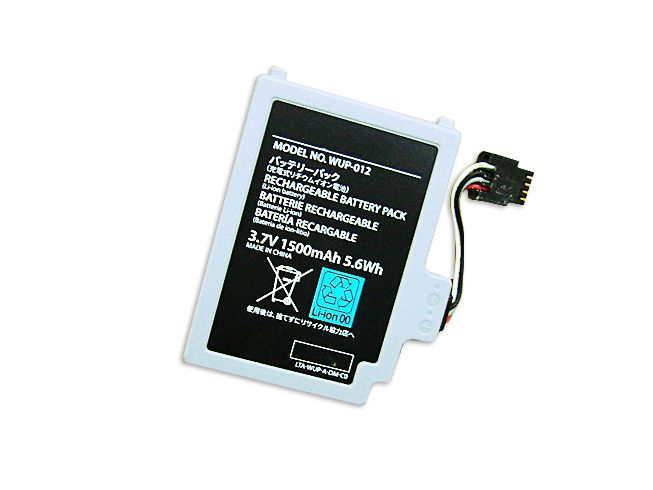
Alta calidad Batería para Nintendo WUP-012

Batería para Nintendo WUP-012 1 año de garantía, 30 días de devolución de dinero, 100% nuevo. 30% de descuento en todos los productos! Garantía: ¡12 meses! Protección contra cortocircuitos Cumple con el medioambiente según los estándares europeos de RoHS. Todos nuestros productos están certificados con Certificado CE Certificado de aprobación CE – Seguridad aprobada.

http://www.tienda-baterias.es/bateria/nintendo/WUP-012-179169.html


  • Marca:Nintendo
  • modelo:WUP-012
  • Tipo:Li-ion
  • Número de inventario:ECN10262_Oth
  • Dimensión:
  • Color:

Si tiene usted cualquier duda, haga el favor de ponerse en contacto con nosotros,Email:info@tienda-baterias.es


Modelos similares :

WUP-012 WUP012

Modelos compatibles:

Nintendo Wii U Gamepad Controller
Nintendo Wii U Remote Controller

Laptop battery Nintendo WUP-012>> Batería para Nintendo WUP-012>> Batteria Nintendo WUP-012>> Nintendo WUP-012 Akku


Batería para Nintendo WUP-012 tips:

1.Carefulness read narrate book of battery,use commendatory battery.
2.New laptop battery pack must be fully charged before use.
3.New Batería para Nintendo WUP-012 needs to be fully charged and discharged (cycled) a few times before it can condition to full capacity.
4.Rechargeable batteries undergo self-discharging when left unused. Always store a Nintendo WUP-012 battery pack in a fully charged stage for storage.
5.Fully drain and fully recharge your battery pack every few month.
6.Li-ion and NiMH battery can not interchangeable.
7.Turn down the LCD brightness of your portable device.
8.Use built-in power management on your portable device.
9.Turn off LCD or other unnecessary accessories when not in use.
10.Set screen saver blank to 1 to 2 minutes of your Nintendo WUP-012 cuaderno .
11.It is normal to get warm when charging or normal use. If it is getting too hot, there may be a problem with the device and qualified personnel should check it.
12.Research the electric appliance and the Nintendo WUP-012 Baterías contact elements is whether clean, when necessity is clean with the wet cloth mop, after dry loads according to the correct polar direction.
13.WUP-012 Batería de la computadora portátil Toshiba should stock in cool place, and dry.